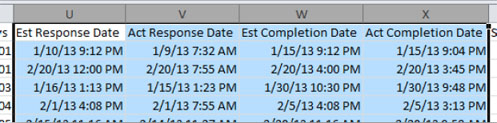
How To: Convert Report Time Data to 12-Hr Clock
When you generate reports and export them in CSV format, date/time values may be exported as 24-hour clock values, for example, 1/10/2014 22:30. You can easily adjust the format of your data in Excel so that the time values are displayed as 12-hour clock values instead, for example, 1/10/2014 10:30 PM.
-
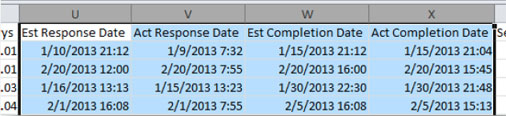
Open your CSV report in Excel and select the columns to convert.
You can select multiple columns at once.
-
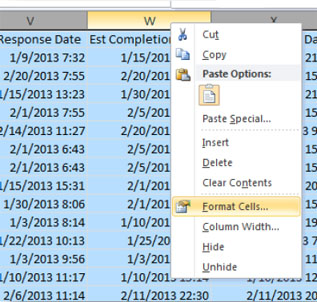
Right-click and select Format Cells.
-
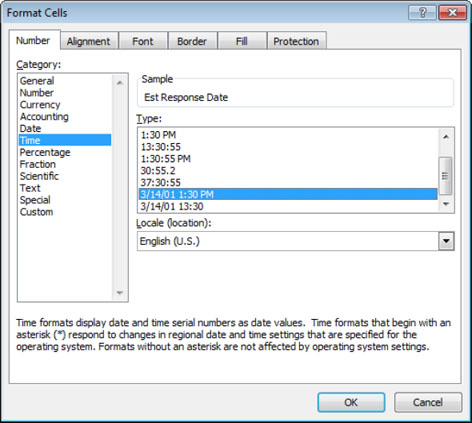
In the dialog box that opens, select the Number tab, select Time, and then select the 12-hour clock option.
-
Click OK.
The report is now updated to display time values on a 12-hour clock.